
You don’t need expensive software to edit photos like a pro anymore.
Free mobile apps now give you the same tools professionals use to enhance lighting, color, and detail.
With just your phone and a bit of practice, you can turn any photo into a polished, high-quality image.
Top Free Mobile Photo Editing Apps to Try
Below is a list of the top free mobile photo-editing apps you can try to edit photos like a pro.
Each one offers strong features for both beginners and more advanced users — all without costing you anything.”
Snapseed
The Snapseed app gives you powerful tools to edit photos like a pro — and it’s free. It’s developed by Google and is built for both casual and advanced editing.
Key features:
- Over 25 (now ~29) tools and filters, including Healing, Brush, HDR, and Perspective.
- RAW image support and non-destructive editing (you can revert edits).
- Selective editing (apply tool to part of photo) and styles you can save and reuse.
- Available on: iOS & Android
Adobe Lightroom Mobile
The Lightroom Mobile app gives you many professional-level editing tools for free. It’s from Adobe and mixes photo editing with organization and syncing.
Key features:
- Basic editing tools free: crop, rotate, exposure, contrast, shadows, etc.
- Presets (pre-made looks) that you can apply with one tap.
- Advanced features (selective adjustments, RAW editing, geometry tools) are available in the paid version.
- Available on: iOS & Android
VSCO
The VSCO app offers creative filters and solid editing tools for free. It’s good if you want stylish looks plus basic editing controls.
Key features:
- Free presets and filters to quickly change the mood of your photo.
- Editing tools like contrast, saturation, HSL (hue/saturation/luminance), crop, skew.
- RAW photo editing support on compatible devices.
- Available on: iOS & Android
Photoshop Express
The Photoshop Express app gives you quick and easy editing tools to enhance photos like a pro for free.
It’s developed by Adobe Inc. and offers fast fixes and creative edits.
Key features:
- One-tap photo enhancements, red-eye correction, and dehazing.
- Ability to crop, rotate, fix perspective, and apply aesthetic filters.
- Create photo collages and export high-resolution images.
- Available on: iOS & Android
Canva (Photo Editor)
The Canva Photo Editor app gives you free design-friendly editing tools to polish images and add creative elements.
It’s by Canva Pty Ltd and suits both editing and graphic creation.
Key features:
- Crop, enhance colors, add filters and effects without watermarks.
- Overlay text, stickers, frames, and design elements directly on photos.
- Mobile app version works seamlessly for social-media-ready edits.
- Available on: iOS & Android
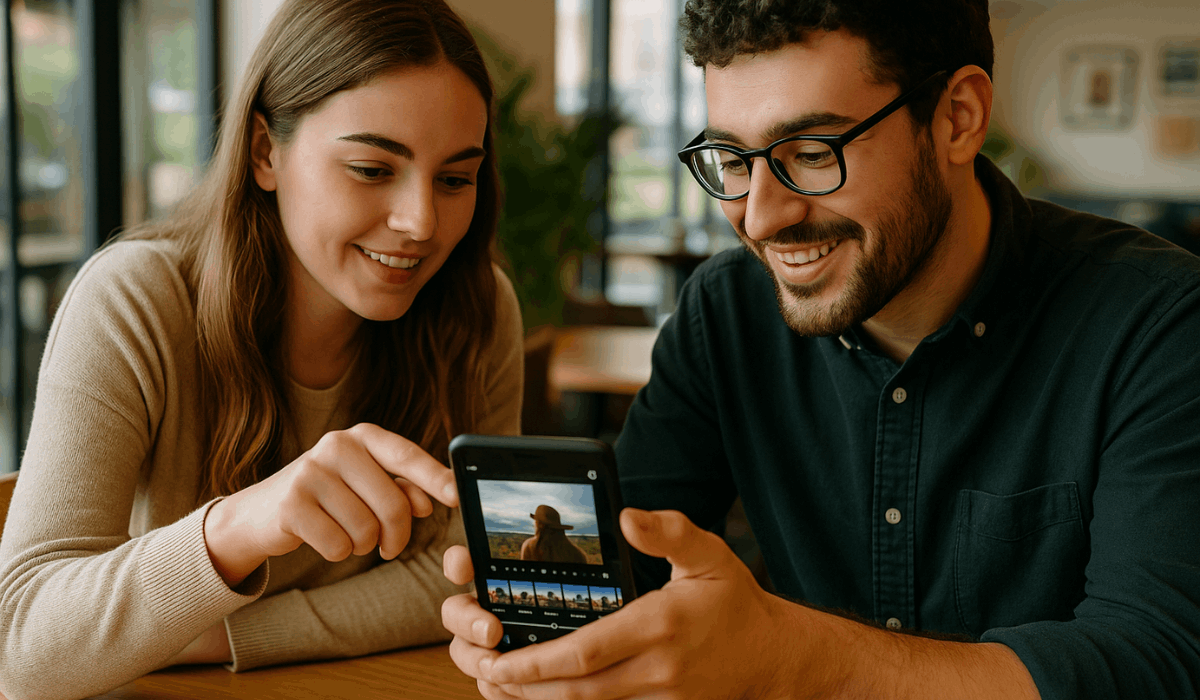
Mastering Key Editing Techniques
To edit photos like a pro, start by learning the key tools that shape every great image.
These basics help you improve light, color, and detail quickly. Here are the core techniques you should master using free mobile apps.
- Cropping and Straightening: Remove distractions and align your photo for balance. Straight edges instantly make images look professional.
- Adjusting Brightness and Contrast: Fix dark or overexposed photos easily. Balanced contrast brings clarity and highlights essential details.
- Enhancing Color and Saturation: Boost or reduce color intensity as needed. Keep tones natural and consistent for realistic results.
- Using Selective Edits: Edit only what matters—like brightening a face or darkening a background. This gives your photo a focused impact.
- Applying Tone Curves: Adjust highlights, midtones, and shadows with precision. Curves help add depth and polish to your image.
- Retouching Portraits: Smooth skin or sharpen eyes subtly. Small changes keep faces natural and appealing without overdoing it.
Enhancing Composition and Lighting
Good composition and lighting are what separate average photos from professional ones.
Even with free mobile apps, you can control how light and framing shape your image. Here are simple techniques to enhance composition and lighting effectively.
- Use the Rule of Thirds: Place your subject along gridlines instead of the center. This creates a balanced, visually engaging photo.
- Balance Highlights and Shadows: Adjust light areas and dark zones for clarity. Proper balance keeps details visible without harsh contrast.
- Apply Natural Light: Whenever possible, use sunlight or soft indoor light. It gives your photo warmth and natural color tones.
- Use Vignettes and Blur: Add a vignette or background blur to direct focus on the main subject. These tools subtly guide the viewer’s eyes.
- Check Angles and Framing: Shoot or crop from different perspectives. Clean framing keeps your subject clear and improves composition.
- Adjust Exposure Manually: Use manual exposure sliders in your app. It helps prevent overexposure and keeps colors accurate.
Adding Creative Touches and Filters
Once you’ve mastered basic edits, it’s time to add personality to your photos.
Creative effects and filters help you edit photos like a pro by giving them a distinct look. Here’s how to use these tools effectively without overdoing them.
- Use Filters Wisely: Pick filters that match your photo’s tone. Avoid heavy effects that distort natural colors.
- Adjust Filter Intensity: Most apps let you control filter strength. Lowering opacity often makes photos look cleaner and more realistic.
- Add Text or Stickers: Use minimal, readable text and subtle stickers. Keep placement balanced to avoid clutter.
- Try Overlays and Frames: Add light leaks, textures, or frames for creative flair. Just ensure they complement, not overpower, the main subject.
- Maintain Color Consistency: Use similar tones and filters across multiple photos. It helps build a cohesive style, especially for social media.
- Experiment but Save Originals: Always keep an unedited copy of your photo. It lets you compare results or try different effects later.
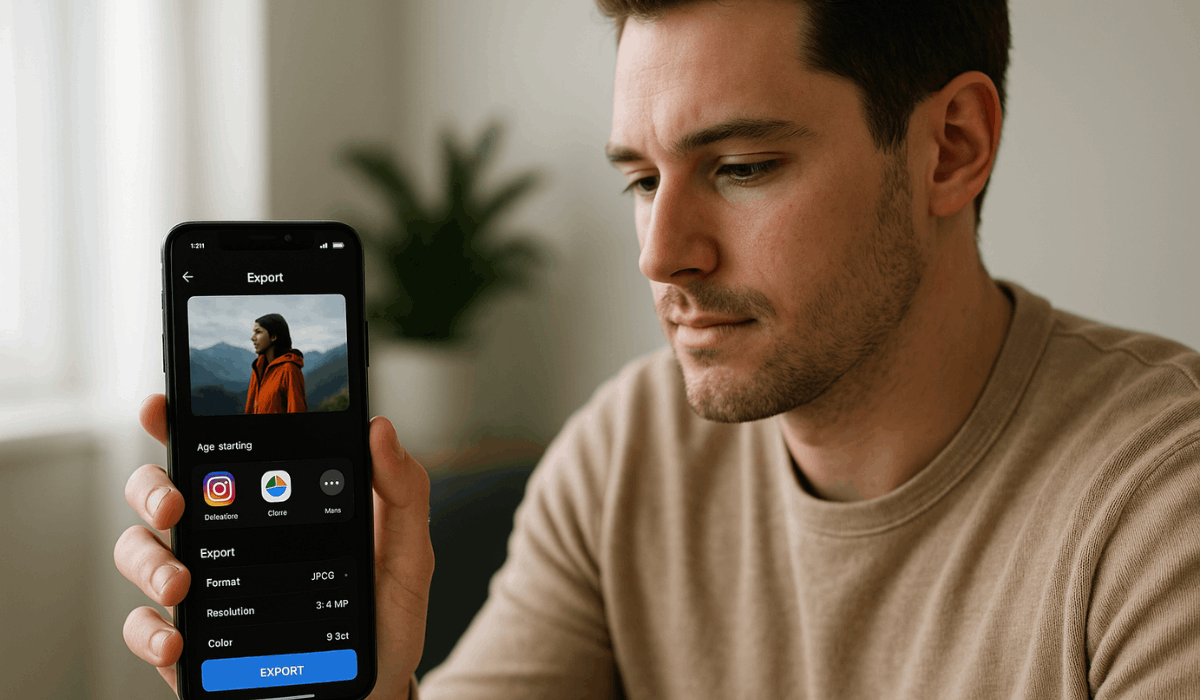
Exporting and Sharing Your Edited Photos
After you edit photos like a pro, exporting them correctly ensures your work looks sharp and professional everywhere you share it.
Poor export settings can ruin quality, so it’s essential to know how to save and share your edits the right way. Here’s how to do it properly.
- Choose the Right File Format: Export in JPEG for social media or PNG for higher quality. These formats balance clarity and file size.
- Set Proper Resolution: Keep the resolution at least 1080p for crisp images. Avoid heavy compression that blurs details.
- Use the App’s Export Settings: Many apps offer custom export options. Adjust the quality sliders to achieve the best results without large file sizes.
- Avoid Repeated Saving: Re-saving edits multiple times reduces quality. Export once from the original edited version.
- Share Directly to Platforms: Most apps let you share directly to Instagram, Facebook, or cloud storage. It saves time and preserves quality.
- Back Up Your Edits: Store final versions in Google Photos, iCloud, or another backup app. This ensures you never lose your best work.
The Bottomline
Learning to edit photos like a pro doesn’t require expensive tools—just consistency and the right free mobile apps.
With practice, you’ll develop your own style and create images that stand out with clarity and balance.
Start experimenting today and turn every photo you take into a professional-quality masterpiece.